Showing posts with label Microsoft Windows 7. Show all posts

Monday, 11 June 2012

Geniune Windows 7 64+32 bit ALL Addition + Activation


Windows 7 is the most recent version of Microsoft Windows, a series of operating systems produced by Microsoft Coporation for use on personal computers, including home and business desktops, laptops, netbooks, tablet PCs, and media center PCs Windows 7 was released to manufacturing on July 22, 2009, and reached general retail availability worldwide on October 22, 2009, less than three years after the release of its predecessor, Windows Vista. Windows 7's server edition, Windows Server 2008 R2, was also released at the same time.
Different from Windows Vista, which introduced a large number of new features, Windows 7 was extended to be a more focused, incremental upgrade to the Windows series, with the goal of being compatible along software and hardware with which Windows Vista was already compatible. According to Microsoft in 2008, Microsoft would intend on multi-touch support, a redesigned Windows shell with a new taskbar, a.k.a. the Superbar, a home networking system called HomeGroup, and several performance improvements. Some standard applications that have been included with prior releases of Microsoft Windows, including Windows Calendar, Windows Mail, Windows Movie Maker, and Windows Photo Gallery, are not included in Windows 7; most are instead offered separately at no charge as part of the Windows Live Essentials suite. 

Thursday, 7 June 2012

How to Improve Windows 7 Performance without Loosing Aero GUI quality


Windows 7 having eye candy desktop with Aero Glass GUI (graphic user interface) but its main cause that decreases performance of your computer. But most windows 7 user loves this windows 7 GUI interface although they should lose their computer performance.
If you loaded windows 7 in your computer and want to improve the performance of your windows 7 but without losing desktop quality you can use following tips and tricks. Before using this tips, make sure to use aero theme on your computer.
A. Fine Tune Visual Effects
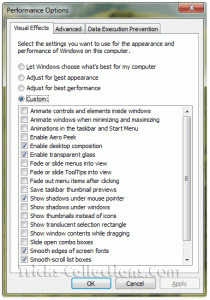
Windows 7 visual effects settingSometimes we don’t need some visual effect on windows 7 because its waste computer resources. To tune visual effect in windows 7 follow this steps:
  1. Click Windows Start Button and type “adjust the appearance” in search program and file then hit Enter. This will load the Visual Effects performance options.
  2. On this screen I suggest to disable following settings by removing the check:
    - Animate controls and elements inside windows
    - Animate windows when minimizing and maximizing
    - Animations in the taskbar and start menu
    - Enable aero peek
    - Fade or slide menus into view
    - Fade or slide ToolTips into view
    - Fade out menu items after clicking
    - Show shadows under windows
    - show translucent selection rectangle
    - Show window contents while dragging
    - Slide open combo boxes
  3. Click Apply then OK when you are finished.

Improve SATA hard disk performance (Convert from IDE to AHCI)


Every hard drive in a modern computer is connected to the system through a storage controller. This controller typically can communicate with the hard drive via a number of different interface protocols. For maximum compatibility many computers are configured in the BIOS to use the older IDE interface protocol to communicate with modern SATA hard drives. This setting is acceptable for the average computer user but IDE lacks support for new technologies such as native command queuing (NCQ) and hot-plugging hard drives (add or remove drives without restarting the computers).
Intel invented a new storage controller interface known as AHCI (Advanced Host Controller Interface) that supports these new technologies with modern SATA hard drives. If you have a hard drive that supports NCQ, it is worth a try to see if your disk performance improves with your workload.

A Better Disk Cleanup


This tip will show you how to create an unattended disk cleanup which will also empty your prefetch folder.  This tip assumes you have Windows XP installed in c:\windows.
Step 1.Create a new text file and place the following contents inside:
c:\windows\system32\cleanmgr.exe /dc /sageset: 1
c:
cd \
cd c:\windows\prefetch
del *.* /q

Step 2.Save the file, changing the extension from .txt to .bat
For this tip's purpose, we will call it clean.bat

Step 3.Execute the file.  This will run the Disk Cleanup program in a special mode which asks what items you will want cleaned when Disk Cleanup performs an unattended cleanup.  Check the items you wish to have cleaned up, then click OK.

Microsoft Windows ShortCut Keys


ShortCut Keys For 
Microsoft Windows And Its Programe:


1.     F1     Help
2.     F2     Rename an item
3.     F3     Open files
4.     ALT+F4     Close window or quit program
5.     F10     Activate the menu bar in a program
6.     CTRL+ ESC     open start menu, use the arrow keys to select an item, or TAB to select the taskbar
7.     ALT+ TAB     Return to previous program, or hold down the ALT key while repeatedly pressing tab to cycle through open programs

Clean Your Prefetch Directory


Microsoft Windows has a new feature called Prefetch.This keeps a shortcut to recently used programs.
However it can fill up with old and obsolete programs.

Follow These Steps:
 
                      1. Go Start then Run,
                      2. Type Prefetch,
                      3. Press Ctrl+A to Select all files,
                      4. Delete all Files.

We are also Provide to you Secreen Shot:


Create Restart/Shutdown icon at Your Desktop


To create a Shutdown icon at Desktop:

                     1. Right click on an open area of the desktop
                     2. Select New Then Shortcut,and appear new window
                     3. Enter in "shutdown -s -t 00" without quotes (") and Press Next Button
                     4. Chose ur icon name anything you like, click on Finish Button.

                     For a reboot icon follow Step # 1,2,4 below and change in # 3

                     Changing is that:

                     shutdown -r -t 00

We are also Provide to you Secreen Shot: