Showing posts with label Articles - Tutorials. Show all posts

Monday, 11 June 2012

Remove Blogger default Navbar

Easy Steps to remove Blogger default navbar
Remove Blogger default NavbarI like this blogger site but one thing i hate is bloggr default navbar which is in the top of the blog because i want to personalise my blog as its my own. after long time i found this method how to remove blogger default navbar from the blog.

Follow this simple steps to remove blogger default navbar.

1. Sign in to your blogger account by typing www.blogger.com in internet explorer
2. Login to your account blogger account.
3. In layout section edit the html of your blog and find
]]></b:skin>


add this code
#navbar-iframe{height:0px;display:none;visibility:hidden; }


after that your code should be like this
]]>#navbar-iframe{ height:0px; display:none; visibility:hidden; }</b:skin>

Saturday, 9 June 2012

How to Unlike a Page on Facebook

How to Unlike a Page on Facebook Timeline
It’s very easy to like Facebook fan Page and become a fan of people, bands, and artists by clicking the like button at the tops of their page. After you liked the fan page you may have faced that you wall is polluted with unwanted stuff which you never want and missed the useful stuffs which you really want. You may have missed the things that your nearest person shared. Suppose you have Liked the news Fan Page to know the news and keep updated but what when they shares unwanted news like news bombing. If you are really tired and upset with this and want get rid of this then here are the tips to Unlike a page on Facebook.

how to unlike a Page on Facebook(Single Page)

These steps will allow you to find the Unlike button and Unlike a Page on Facebook Timeline.

Thursday, 7 June 2012

How to Reduce Image File Size without Losing Quality


punyPNG
The file size of the image with good quality is usually very large. This means using a lot of space on hard drive. The solution this problem you can reduce the file size of the image but without reducing the quality of the image. To Reduce Image File Size without Losing Quality there are many tools and software can be used.  On this article I only wrote three tools namely 2 online tools and other tools using software. The reason why I chose this tool/software because this tool is very easy to use and free.
The following review of the tools and how to use it:
1.  Reduce Image File Size without any Loss of quality using PunyPNG
PunyPNG is a free online tool that dramatically reduces the file size of your images without any loss of quality. PunyPNG support PNG, JPEG and GIF image format.
PunyPNG is very easy to use, you just open PunyPNG website and upload your image by clicking “Upload Images” button and this tool will reduce the file size of your image automatically.

How to Improve Windows 7 Performance without Loosing Aero GUI quality


Windows 7 having eye candy desktop with Aero Glass GUI (graphic user interface) but its main cause that decreases performance of your computer. But most windows 7 user loves this windows 7 GUI interface although they should lose their computer performance.
If you loaded windows 7 in your computer and want to improve the performance of your windows 7 but without losing desktop quality you can use following tips and tricks. Before using this tips, make sure to use aero theme on your computer.
A. Fine Tune Visual Effects
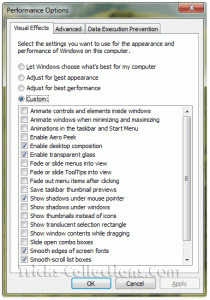
Windows 7 visual effects settingSometimes we don’t need some visual effect on windows 7 because its waste computer resources. To tune visual effect in windows 7 follow this steps:
  1. Click Windows Start Button and type “adjust the appearance” in search program and file then hit Enter. This will load the Visual Effects performance options.
  2. On this screen I suggest to disable following settings by removing the check:
    - Animate controls and elements inside windows
    - Animate windows when minimizing and maximizing
    - Animations in the taskbar and start menu
    - Enable aero peek
    - Fade or slide menus into view
    - Fade or slide ToolTips into view
    - Fade out menu items after clicking
    - Show shadows under windows
    - show translucent selection rectangle
    - Show window contents while dragging
    - Slide open combo boxes
  3. Click Apply then OK when you are finished.

How to Make Windows XP Genuine


First Method

1. Open NotePad from Start Menu and paste the following code in your notepad program.
[HKEY_LOCAL_MACHINESOFTWAREMicrosoftWindows NTCurrentVersion]
“CurrentBuild”=”1.511.1 () (Obsolete data – do not use)”
“ProductId”=”55274-640-1011873-23081″
“DigitalProductId”=hex:a4,00,00,00,03,00,00,00,35,35,32,37,34,2d,36,34,30,2d,
31,30,31,31,38,37,33,2d,32,33,30,38,31,00,2e,00,00,00,41,32,32,2d,30,30,30,
30,31,00,00,00,00,00,00,00,86,56,4e,4c,21,1b,2b,6a,a3,78,8e,8f,98,5c,00,00,
00,00,00,00,dd,da,47,41,cc,6b,06,00,00,00,00,00,00,00,00,00,00,00,00,00,00,
00,00,00,00,00,00,00,00,00,00,00,38,31,30,32,36,00,00,00,00,00,00,00,b5,16,
00,00,83,83,1f,38,f8,01,00,00,f5,1c,00,00,00,00,00,00,00,00,00,00,00,00,00,
00,00,00,00,00,00,00,00,00,00,00,00,00,00,00,00,00,66,e5,70,f3
“LicenseInfo”=hex:33,b7,21,c1,e5,e7,cd,4b,fd,7c,c6,35,51,fd,52,57,17,86,3e,18,
d3,f4,8c,8e,35,32,7b,d1,43,8d,61,38,60,a4,ca,55,c9,9a,35,17,46,7a,4f,91,fc,
4a,d9,db,64,5c,c4,e2,0f,34,f3,ea
[HKEY_LOCAL_MACHINESOFTWAREMicrosoftWindows NTCurrentVersionWPAEvents]
“OOBETimer”=hex:ff,d5,71,d6,8b,6a,8d,6f,d5,33,93,fd

Remove Rar Password With TWO Metheds + Crack File


A RAR archive file can compress multiple files into one, which is well-done for ease of transport. So when you need to send some files to your clients, colleagues and friends, WinRAR can be one of the best choice to compress these files. In addition, you can also create a RAR password so that no unauthorized person can access the archive’s contents. But the only problem is that how to access into the RAR archives if you forgot WinRAR or RAR password? Is there any way to remove WinRAR password?

Method One: Remove WinRAR Password for None-password Protection

Sometimes, a password-protect RAR files can be too much hassle and need to be removed. So, if you know the password, you can remove it and then create a new archive file without a password. Below is the step-by-step guide:


Step 1: Open the WinRAR software utility and right click on the RAR file that has the password you want to remove. Select Extract Files from the list of options.

rar password recovery

Step 2: Click the RAR file’s password in the window that appears and click OK.

Improve SATA hard disk performance (Convert from IDE to AHCI)


Every hard drive in a modern computer is connected to the system through a storage controller. This controller typically can communicate with the hard drive via a number of different interface protocols. For maximum compatibility many computers are configured in the BIOS to use the older IDE interface protocol to communicate with modern SATA hard drives. This setting is acceptable for the average computer user but IDE lacks support for new technologies such as native command queuing (NCQ) and hot-plugging hard drives (add or remove drives without restarting the computers).
Intel invented a new storage controller interface known as AHCI (Advanced Host Controller Interface) that supports these new technologies with modern SATA hard drives. If you have a hard drive that supports NCQ, it is worth a try to see if your disk performance improves with your workload.

A Better Disk Cleanup


This tip will show you how to create an unattended disk cleanup which will also empty your prefetch folder.  This tip assumes you have Windows XP installed in c:\windows.
Step 1.Create a new text file and place the following contents inside:
c:\windows\system32\cleanmgr.exe /dc /sageset: 1
c:
cd \
cd c:\windows\prefetch
del *.* /q

Step 2.Save the file, changing the extension from .txt to .bat
For this tip's purpose, we will call it clean.bat

Step 3.Execute the file.  This will run the Disk Cleanup program in a special mode which asks what items you will want cleaned when Disk Cleanup performs an unattended cleanup.  Check the items you wish to have cleaned up, then click OK.

Rename Your Recycle Bin Icon


Follow These Steps to Change 
Your Recycle Bin Icon Name:
  • Go Start And Find Run
  • And Type regedit
  • And now open New Window
  • Now Find "HKEY_CLASSES_ROOT " And Expand it
  • Then Find CLSID Also Expand it
  • Now Find "645FF040" Expand it
  • And Now You On Right Side You Can Find "LocalizedString"
  • Doubble Click On "LocalizedString"
  • Here Open New Small Window
  • Here You Find "Value Data"
  • Types Here Any Name What You Want And Press Ok
  • And Close "Regedit" And See Recycle Bin Icon. 
 iSoft Provide To You Screen Shot:


Using Keyboard As A Mouse


How to use Keyboard as a Mouse
Follow These Steps:

                          1. Go Start And Open Control Panel
                          2. Here you Find "Accessibility Option"
                          3. Open Now Appear New Window
                          4. Now on Bottom Click on Mouse
                          5. Now Select "Use Mousekeys"
                          6. Click on Settings
                          7. Here you Find Pointer Speed
                          8. Change Pointer Speed Suitable for you
                          9. Moving your Pointer With Numlock Keypad

We are also Provide to you ScreenShot:


Clean Your Prefetch Directory


Microsoft Windows has a new feature called Prefetch.This keeps a shortcut to recently used programs.
However it can fill up with old and obsolete programs.

Follow These Steps:
 
                      1. Go Start then Run,
                      2. Type Prefetch,
                      3. Press Ctrl+A to Select all files,
                      4. Delete all Files.

We are also Provide to you Secreen Shot:


Create Restart/Shutdown icon at Your Desktop


To create a Shutdown icon at Desktop:

                     1. Right click on an open area of the desktop
                     2. Select New Then Shortcut,and appear new window
                     3. Enter in "shutdown -s -t 00" without quotes (") and Press Next Button
                     4. Chose ur icon name anything you like, click on Finish Button.

                     For a reboot icon follow Step # 1,2,4 below and change in # 3

                     Changing is that:

                     shutdown -r -t 00

We are also Provide to you Secreen Shot:


Saturday, 2 June 2012

How to disable or remove Facebook timeline ?


If you don’t like the new Timeline feature on Facebook and want to view profiles in the old style,
then TimelineRemove is the perfect extension for you. This tiny, but handy tool disables
the new Facebook timeline feature and restores the classic look,
without changing the timeline behavior for other visitors of your Facebook profile.
The extension basically works by hiding the timeline, so you can view your own and others’ profiles
in the old style.
TimelineRemove works automatically once installed, and a button is added to the toolbar that lets
you toggle the timeline on and off, whenever you want.